Showing posts with label Information Technology. Show all posts

Sunday, June 28, 2015

Toy Engine - Playful Coding

What if I told you there was an easy way to learn coding? If you are in the process of learning, you might think "Awesome! Just what I need", if you have already learned coding you might wonder where this was when you were learning, and if you're a coding purist you may think this is just dumb. Regardless of your initial thought, if you code or want to code, this app is going to rock your world!

Toy Engine is an app that allows users to drag and drop pieces of code in a game - like quest. This ultimately teaches the aspects of coding as well as actual code. This new wave of games as teaching tools I find to be very fun. As I've mentioned on previous psts, I am an avid gamer, so when apps teach me something while I'm playing a game, I usually am very happy.

For example the Microsoft Office - Ribbon Hero 2 is an interactive game - like tutorial of the programs within Office. I had so much fun playing this and learned a couple new things about Office in the process. If there is an app that is going to teach me bits of code, SQL or other information technology concepts, I'm all in. What do you say?

Friday, June 26, 2015

Computers Learning the Lingo


If you've ever had to speak with an automatic, computerized phone system or had to chat to get help online with a bot, you know how frustrating it can be. No matter how "smart" technology gets, it seems computers still have a hard time understanding us humans.

TechnologyReview.com has a great article about MetaMind, a system that has a higher accuracy of answering questions appropriately. This is accomplished via a database of concepts and facts that are retrieved via a dynamic memory system that requires the program to search for relevant patterns in text it has learned from. Here is an example of retrieval:

Statements fed into the system: 
Jane went to the hallway. 
Mary walked to the bathroom. 
Sandra went to the garden. 
Daniel went back to the garden. 
Sandra took the milk there. 
Question: 
Where is the milk? 
Answer: 
Garden.
 I feel as though this is a beginning to develop a new way for people to interact with computers, which will ease access of information. What do you think? Is this going too far?

HTML5 to Replace Flash and simplify web design?


According to an article over at InfoWorld.com, Famous, the creator of HTML5 and JavaScript is looking to make Flash obsolete, and change the world of web development. Their No Code Authoring Tool will rely on "a visual interface to create mobile apps and responsive websites" which will eliminate the need to write code.

This idea certainly appeals to the novice coder, and can make the most oblivious user able to create a custom site without learning these coding languages. But one has to ask; will this really allow the same level of detail and hand tagging and coding your own site? What do you think?


Wednesday, June 24, 2015

PS4 and Usability

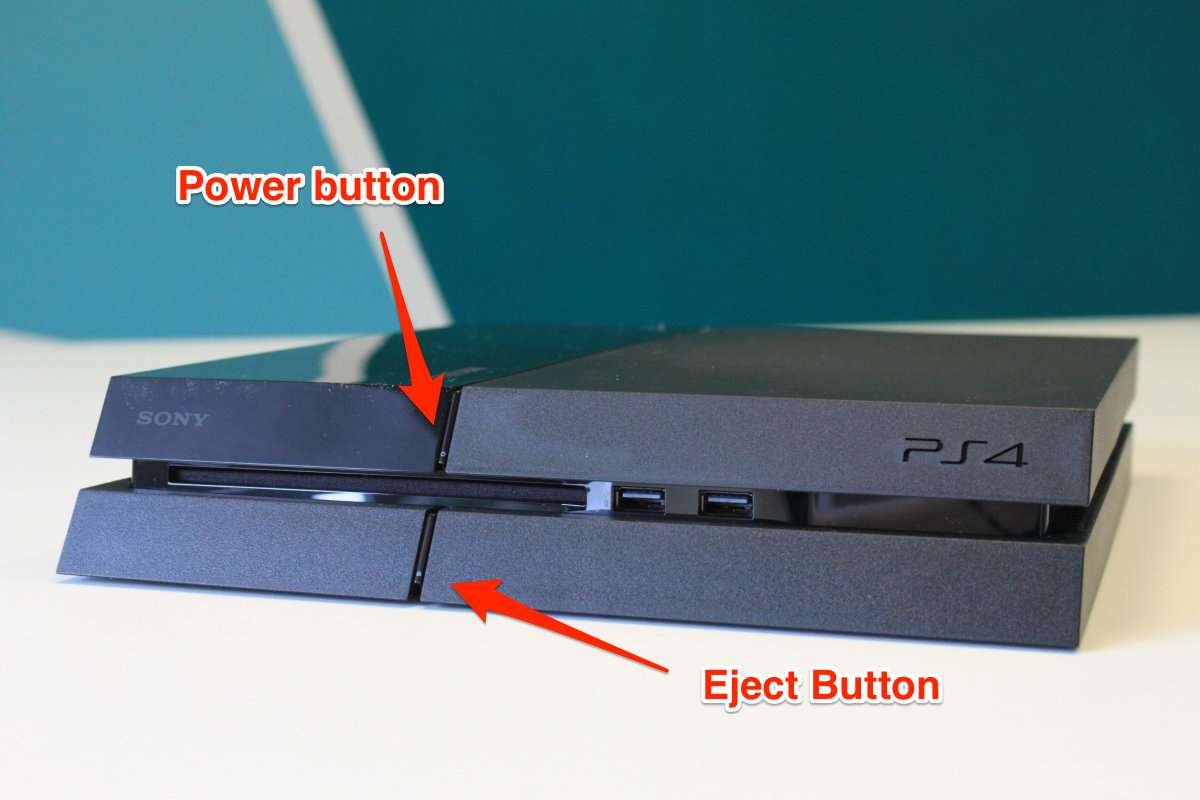
Being the avid gamer I am, I like to look around for gaming news. However, due to recent studies, I've been thinking a lot about usability and user-interface. I found this really great article at Forbes.com. Basically the PS4 had touch sensitive buttons on the console for powering it on/off ejecting the disk, etc. I currently don't have a PS4, but am saving up to get one - Mass Effect: Andromeda is coming next year! But his article goes into the author's gratitude about the new generation of PS4s are going to have mechanical buttons.


I can only imagine how infuriating it must be to be someone with a disability that cannot see where these touch sensitive buttons are. I mean, my television has touch sensitive controls, and I find it hard to sleepily get up from the couch, unable to find the remote, and stumble my way to the television, rubbing my hand across the bottom of the tv adjusting contrast, volume, power saving settings, to FINALLY find the power sensor. I can't imagine what it must be like to have life be like that all day every day.

This is why I'm extremely proud of Sony for listening to the issues users are having, and developing a user-friendly interface for turning on the console and ejecting disks.

Thursday, June 11, 2015

Databases

What is the difference between data and information? 

  • Data - random content, no context
  • Information - data within a context, data with MEANING
Database Anatomy
  • Table
    • Columns - topics/headers/descriptors of data
      • Field
    • Rows - individual instances of data
      • Records
Primary key - unique identifies (each record must be unique)
Foreign Key - relating information in other table

Table Relationships

One to one - Both tables can have only one record on either side of the relationship. Each primary key value relates to only one (or no) record in the related table. Most one-to-one relationships are forced by business rules and don't flow naturally from the data. In the absence of such a rule, you can usually combine both tables into one table without breaking any normalization rules.
       -e.g. Spouses are 1 to 1 records. You can only have 1 spouse.


One to many - The primary key table contains only one record that relates to none, one, or many records in the related table.
       -e.g. Parent-child relationships are one-to -many, as parents can have many children

Many to many - Each record in both tables can relate to any number of records (or no records) in the other table. Many-to-many relationships require a third table, known as a bridge table, because relational systems can't directly accommodate the relationship.
         -e.g. Students can take many courses, and courses can have many students

Integrity Rules

Entity Integrity - Each entity has a unique key

Referential Integrity - Foreign key value is null or matches primary key values in related table

Database Efficiency

Normalization  - reduces repetitive entries an makes the design and structure of the database as efficient as possible. There are multiple levels to this normalization (1 NF, 2 NF, 3 NF)

1 NF 
  • Eliminates duplicative columns from the same table.
  • Identifies each row with a unique column (the primary key
    • Steps
      • Eliminate repeating groups
      • Identify primary key
      • Identify all dependencies

2 NF
  • It is in 1 NF
  • There are no partial dependencies
    • Steps
      • Start with 1 NF formula
      • Write each key component w/ partial dependency) on separate line
      • Write original (composite) key on last line
      • Each component is new table
      • Write dependent attributes after each key

3 NF

  • It is in 2 NF
  • There are no transitive dependencies
    • Steps
      • Start with 2NF format
      • Break off the TP pieces and create separate tables

Tuesday, June 2, 2015

HTML Lists & Tables

Unordered Lists:

  • tag: ul
    • For Example
      < h3 > This list is unordered < /h3 >
      < ul type = "square" >
      < li >Read Book< /li >
      < li > Discuss Topic < /li >
      < /ul >
Ordered Lists:
  • tag: ol
    • For Example
      < h3 > Work your way through these items: < /h3 >
      < ol >
      < li >Read Book< /li >
      < li > Discuss Topic < /li >
      < /ol >
Nested Lists:
  • For Example: (note HTML ignores white space. We are using spaces to help us see where nesting is happening)
    < h3 > Work your way through these items < /h3 >
    < ol >
    < li >Read Book< /li >
           < ul >
                   < li > The Giver
                   < li > 1984
                   < li > Animal Farm
            < /ul >
    < li > Discuss Topic < /li >
           < ul >
                   < li > Dystopia
                   < li > How the past viewed the present vs. how the present really is
                   < li > Government Surveillance
           < /ul >
    < /ol >
Tables:
  • < table > - starts/stops table
  • < tr > - creates table row
  • < td > - creates an individual cell
    • For Example:
      < table >
      < tr >
      < td > The Giver

< td > 1984 < /td >
< td > Animal Farm < /td >
< /tr >
< /table >
  • To add table border:
    • < table border = "_" >
    REMEMBER TO CLOSE ALL TAGS! Working with lists and tables creates more tags, and can lead to confusion. Be sure to close all tags before moving on. 

    Thursday, May 28, 2015

    Intermediate HTML & Hand Tagging

    **The topics and items included in this post will build off of the items presented in my Basic HTML & Hand Tagging blog.**

    More Tagging
    Attributes & Working with Color

    • bg ______=______ - Left is what attribute you want to set up, on right the attribute dimension
    • bg - background (bgcolor - sets the background color)
    • w3schools.com lists attributes
    • HTML 5 no longer accepts attributes, using CSS is preferred
    • For example:
      < HTML >
      < HEAD >
      < TITLE >Learning Libraries < /TITLE >
      < /HEAD >
      < BODY bgcolor="FFFF10">
      < P >< H4 >< i >Google can bring you back 100,000 answers, a librarian can bring you back the right one.< /i > < /H4 > < BR > < H5 >- Neil Gaiman < /H5 > < /P >
      < /BODY >
      < /HTML >
    Additional Attributes
    • < pre > - makes it so the HTML text has been pre-formatted to display properly on the web, so any white space will be preserved, etc.
    • < kbd > -  (keyboard) creates keyboard text (e.g. Click the Ctrl key to enter a response)
    • < !-- -- > a comment tag that cannot be seen by users, but can be seen by others working on same code
    • < sup > - superscript
    • < sub > - subscript
    • < align = "___" > aligns the text to specifications 
    • For Example:
      < HTML >
      < HEAD >
      < TITLE align="center" > Learning Libraries < /TITLE >
      < /HEAD >
      < BODY bgcolor="FFFF10">
      < P >< H4 >< i >Google can bring you back 100,000 answers, a librarian can bring you back the right one.< /i > < /H4 > < BR > < H5 >- Neil Gaiman < /H5 >< /P >
      < /BODY >
      < /HTML >
    Linking to Another Webpage
    • < a href "______________" >
    • For Example:
    • < HTML >
      < HEAD >
      < TITLE align="center" > Learning Libraries < /TITLE >
      < /HEAD >
      < BODY bgcolor="FFFF10">
      < P >< H4 >< i >Google can bring you back 100,000 answers, a librarian can bring you back the right one.< /i > < /H4 > < BR > < H5 >- Neil Gaiman < /H5 > Visit my student learning blog < a href="http://www.learninglibraries.blogspot.com" >here.< /a >< /P >
      < /BODY >
      < /HTML >
    • DON'T FORGET TO CLOSE YOUR < a > TAG!!! Any text that comes between the opening and the close will be part of the link text.
    Linking an email
    • "mail to"command - < a href="mailto:_______@_____">
    • Linking to websites and emails are known as absolute paths, as these sites and emails are absolute in nature and are not dependent upon the linker's file location. These locations have fixed URLs/places on the internet.
    • For Example
    •               < HTML >
                    < HEAD >
                    < TITLE align="center" > Learning Libraries < /TITLE >
                    < /HEAD >
                    < BODY bgcolor="FFFF10">
                     < P >< H4 >< i >Google can bring you back 100,000 answers, a librarian can bring you back the right one.< /i > < /H4 > < BR > < H5 >- Neil Gaiman < /H5 > Visit my student learning blog < a href="http://www.learninglibraries.blogspot.com" >here.< /a > Feel free to contact me with any questions via < a href=mailto:srmwestberry@gmail.com> email < /a >.< /P >
      < /BODY >
      < /HTML > 

    Providing a Dowload Link
    • When linking to a file, the file should be uploaded (alongside the html source code) to a server. These should both be in the same file to enable access.
    • Uploaded, personal files are known as relative paths. This is due to the relative nature of file placement. 
    • < a href="________.___" > (e.g. < a href=Library Laws.pdf >)
    • For Example
    •               < HTML >
                    < HEAD >
                    < TITLE align="center" > Learning Libraries < /TITLE >
                    < /HEAD >
                    < BODY bgcolor="FFFF10">
                     < P >< H4 >< i >Google can bring you back 100,000 answers, a librarian can bring you back the right one.< /i > < /H4 > < BR > < H5 >- Neil Gaiman < /H5 > Visit my student learning blog < a href="http://www.learninglibraries.blogspot.com" >here.< /a > Feel free to contact me with any questions via < a href=mailto:srmwestberry@gmail.com> email < /a >.< /P >< P > Be sure to check out the < a href="Library Laws.pdf> Library Laws >

    < /BODY >
    < /HTML > 

  • To provide a link inf a different directory (or file) you would place the name of the file within the tag.
    • For Example: If you saved or created the Library Laws file in a folder named "rules" the tag would be - rules/Library Laws.pdf>

    Internal Links
    • Longer web pages may have sections to which the reader wants to jump. To do this you need to have a reference for the area you want to be able to jump to.
    • < HTML >
                    < HEAD >
                    < TITLE align="center" > Learning Libraries < /TITLE >
                    < /HEAD >
                    < BODY bgcolor="FFFF10">
                     < P >< H4 >< i >Google can bring you back 100,000 answers, a librarian can bring you back the right one.< /i > < /H4 > < BR > < H5 >- Neil Gaiman < /H5 > Visit my student learning blog < a href="http://www.learninglibraries.blogspot.com" >here.< /a > Feel free to contact me with any questions via < a href=mailto:srmwestberry@gmail.com> email < /a >.< /P >< P > Be sure to check out the < a href="Library Laws.pdf> Library Laws >
    and our < a href="index.html#Sponsorships" > Sponsorships.< /a >
    < /BODY >
    < /HTML >< br >
    < br >
    < br >
    < br >
    < br >
    < br >
    < br >
    < br >
    < br >
    < br >
    < br >
    < br >
    < br> < a name="Sponsorships" > Library Sponsorships < /a >


    Linking a Photo
    • Linking to a photo is similar to linking to a dowloadable file. 
      • You need to make sure they are linked correctly per their placement in the file/server.
      • You need to make sure the name of the image file matches that with the name included in the tag.
    • Tag to include photo < img src="headshot.jpg" >
      • To edit height and width:
        • < img src="headshot.jpg" width="___" height="___">


    Tuesday, May 26, 2015

    Basic HTML & Hand Tagging


    A Few Terms to Keep in Mind
    • Hand-Tagging - plain text tagging without formatting and graphics. User working with a text editor (notepad, text edit, etc.)
    • IT Fluency - an understanding of the underlying concepts of technology and the critical thinking skills needed to select from multiple formats (hardware, software, and media) for optimized knowledge building
    • HCI - (Human Computer Interaction) a discipline concerned with the design, evaulation and implementation of interactive computing systems for human use and with the stufy of major phenomena surrounding them

    HCI in action
    • GUI - (Graphical User Interface) what we see visually on a screen (webpage, etc.)
    • HTTP  - (Hyper Text Transfer Protocol) the channel through which we send and receive information on the internet
    • HTML - (Hyper Text Markup Language) Marking up for display via:
      • Tags - the markup of words (making it bold, itallic, etc.) which adds value
      • W3C - (World Wide Web [W3] Consortium) Governing body of HTML
    Creating and Editing a Webpage
    Note: there are spaces within the tags, as without it Blogger creates the webpage. There should be no spaces within tags
    Creating

    • Open Text Editor
    • Begin with basic tags - tags always starts with < and ends with >. Open tags look like and closed tags look like
      • HTML tag - < HTML > - denotes start & stop of HTML content
      • Head tag - < HEAD > - creates a header (user usually doesn't see this content)
      • Title tag - < TITLE > - Title of the webpage
      • Body tag - < BODY > - what is displayed within the web browser itself
      • Paragraph tag - < /P > - creates a new paragraph on website
      • Headings tag - < HN > - Creates headings within the document N is a variable for font size. Sizes can go from (H1[Largest] to H6 [Smallest]) NOT to be used within paragraph tags
      • Line Break - < BR > - creates a line break (line break tag does not need a close (< /br >)
      • Bold tag - < b > - bolds text between
      • Italics tag - < i > - italicizes text between
      • Underline tag - < u > - underlines text between
      • Document type tag - < !DOCTYPE html > - declares what type of document and what version of html being used (w3schools.com is a resource listing all document tags)
        • For example:
          < HTML >
          < HEAD >
          < TITLE > Learning Libraries </ TITLE>
          < /HEAD >
          < /HTML >
    • Save as "index.html"
    • Open file in browser to check the page is working
    Editing/Entering Content
    • Open file in text editor
    • Enter/edit content
        • For example:
          < HTML >
          < HEAD >
          < TITLE >Learning Libraries < /TITLE >
          < /HEAD >
          < BODY >
          < P >< H4 >< i >Google can bring you back 100,000 answers, a librarian can bring you back the right one.< /i > < /H4 > < BR > < H5 >- Neil Gaiman < /H5 > < /P >
          < /BODY >
          < /HTML >
    • Save content
    • Open file in browser to see if your edits are applied and page is working properly
    Content needs to be nested within the content for example:
    • Incorrect : < b > < i > Google Rocks! < /b > < /i >
    • Correct : < b > < i > Google Rocks! < /i> < /b >
    We can ensure this is correct and validated at validation sites (e.g. http://validator.w3.org)